Transactions
To Search and View Receive Notes
Click Transactions on the navigation bar.
From the drop-down menu select Receive Notes
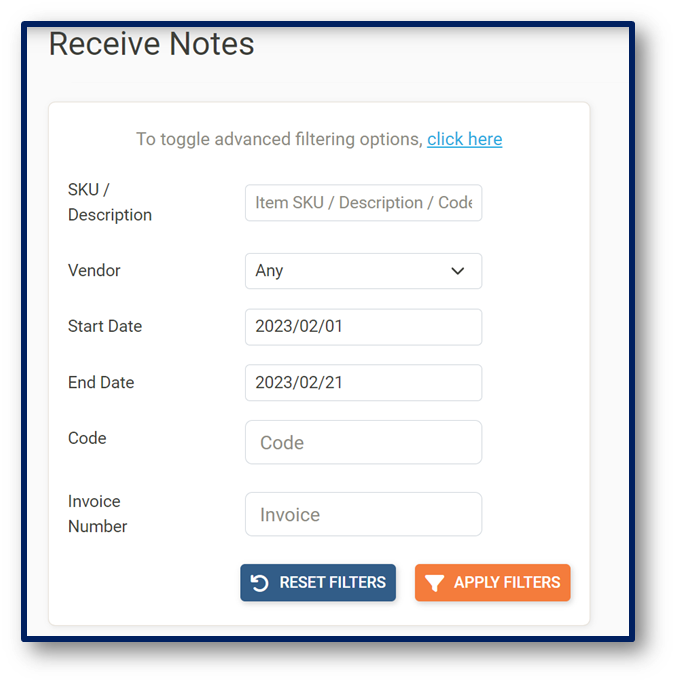
 button and Receive Notes List page is displayed:
Search by item SKU, by item Description or Barcode
Search by Vendor
Select Date Range
Search by Goods Received Notes Code
Search by Invoice Number
Apply Filters button to search for items
Reset Filter button to remove all filters
Actions button to View Receive Note
Actions button to Create Credit Note (for selected receive note)
Export as PDF button to print Receive Note (if required)
To Create Credit Notes
Click Transactions on the navigation bar
From the drop-down menu select the Receive Notes
button and the Receive Notes page is displayed:From the list of transactions, click the Magnifying glass to view the receive note
Click the Create Create Note
 button
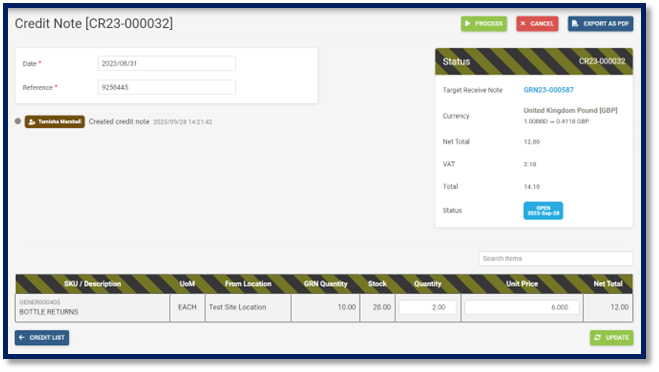
Change Date
Select which item is to be credited by clicking the box on the left side of the item
Click Create Credit Note
Change Date
Enter Reference Number
Enter Quantity
Update
Process
Cancel
Export as PDF
To Search and View Credit Notes
Click Transactions on the navigation bar.
From the drop-down menu select Credit Notes
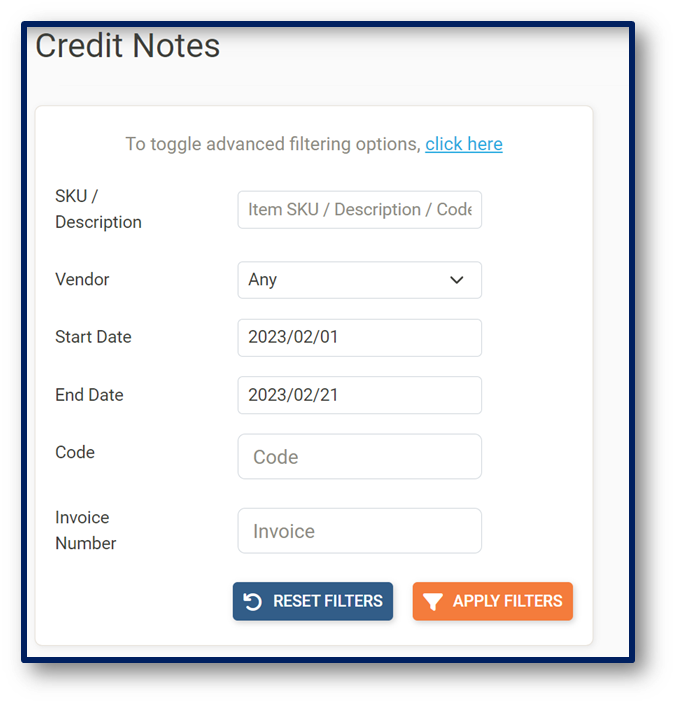
 button and Credit Notes List page is displayed:
Search by item SKU, by item Description or Barcode
Search by Vendor
Select Date Range
Search by Credit Note Code
Search by Invoice Number
Apply Filters button to search for items
Reset Filter button to remove all filters
Actions button to View Credit Note
Export as PDF button to print Receive Note (if required)