Quotations
To Create Quotations
Click Quotations on the navigation bar
Click the Add Quotations
 button and the Create Quotation page is displayed:
To Create a Quotation
Search by Item SKU, Description or Code
Search by Vendor
Search by Type
Apply Filters button to search for items
Reset Filters button to remove all filters
Click the green plus button to add an item to the Cart
Click the red minus button to remove an item from the Cart
Add a Quantity
Select a Vendor
Click Clear to remove all items from the Cart
Actions button to create a new item (if required)
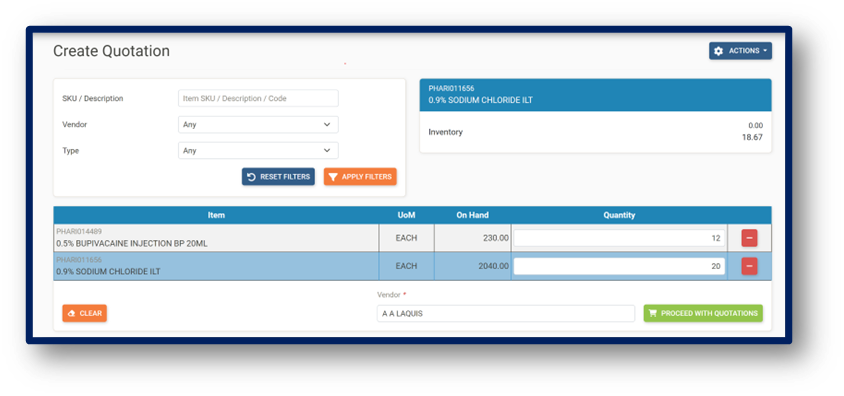
Once completed, click the Proceed With Quotations
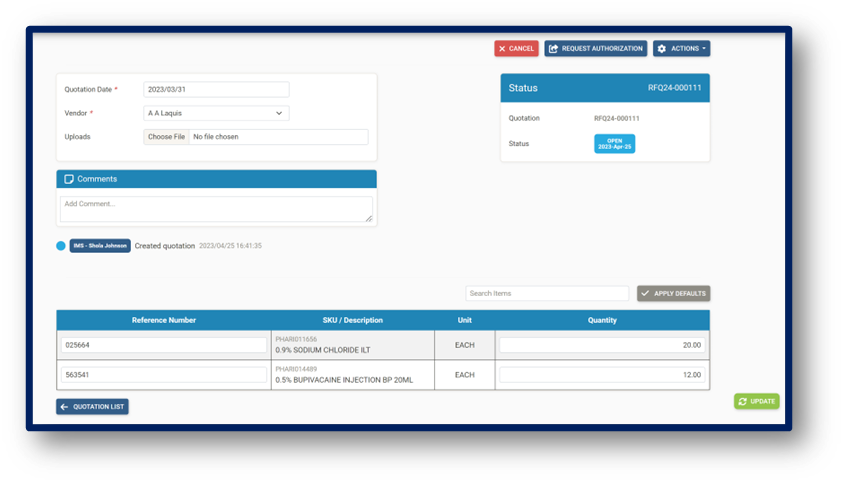
 button and the Edit Purchase Order page is displayed:
Enter the Quotation Date
Select a Vendor
Upload File (if required)
Add a note (private or public)
Enter Reference Number
Enter Quantity
Search items (if required)
Apply Defaults (defaults the reference number back to blank if something was entered)
Quotation List button to go back to Quotation List page
Update button to save order
Cancel button to cancel order
Authorize Quotation (based on permissions)
Deauthorize Quotation (based on permissions)
Send to Vendor (based on vendor set-up)
Actions button to Create new items on the fly (if required)
Actions button to Add items to Quotation (if required)
Actions button to Remove items from Quotation (if required)
Actions button to Copy items to Quotation Cart (if required)
Actions button to Copy items to Purchase Cart (if required)
Actions button to Export Purchase Order as PDF (if required)
To Search and View Quotations
Click Quotations on the navigation bar.
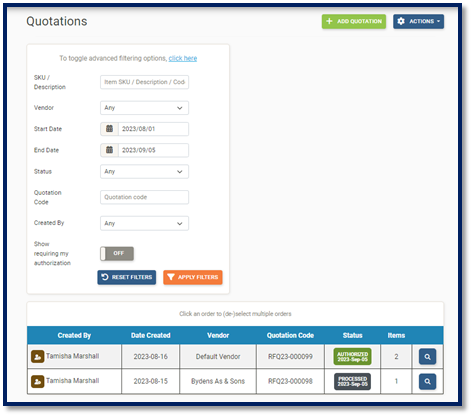
The Quotations main page is displayed:
-Search by Item SKU, Description, or Quotation Code - Click the Filters button |Filters_Button.png|to filter by:
Created by
Create date
Description
Quotation
Require My Authorization (only when the user has manager roles)
Status
SKU
-Click the Reset Filter button to filter the previously selescted options
Use the Favourite Filters button to filter by the user’s most used filters
- Sort by button can sort the list by:
Created by
Date created
Item count
Quotation code
Quotation date
Status date
Status name
Vendor
- Click the Actions button to:
Cancel selected transactions
Export selected as PDF
Clear selected transactions
Click the blue magnifying glass to view the desired quotation.