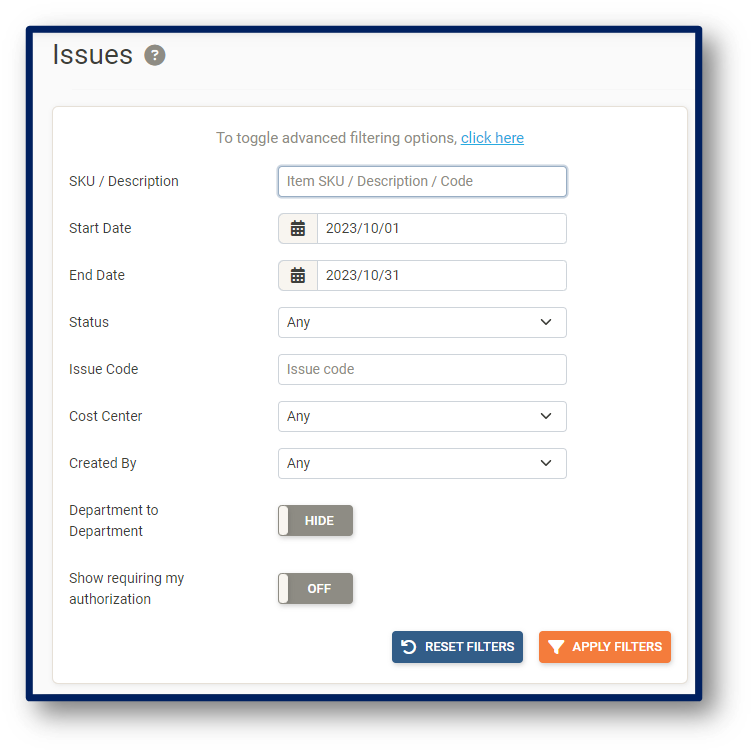
Issues
To Create an Issue
Click Issues on the navigation bar
Click the Add Issues button |Add_Issues.png| and the Create Issue Order page is displayed:
Search for items by SKU or Description
Filter list by Category
Add items to the Issue cart (using the green plus sign button)
Remove items from the Issue cart (using the red minus sign button)
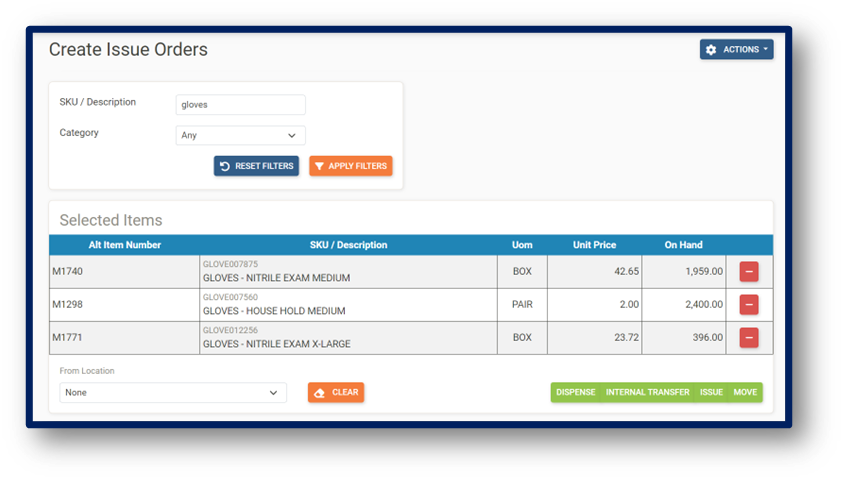
Once completed, click the Issue
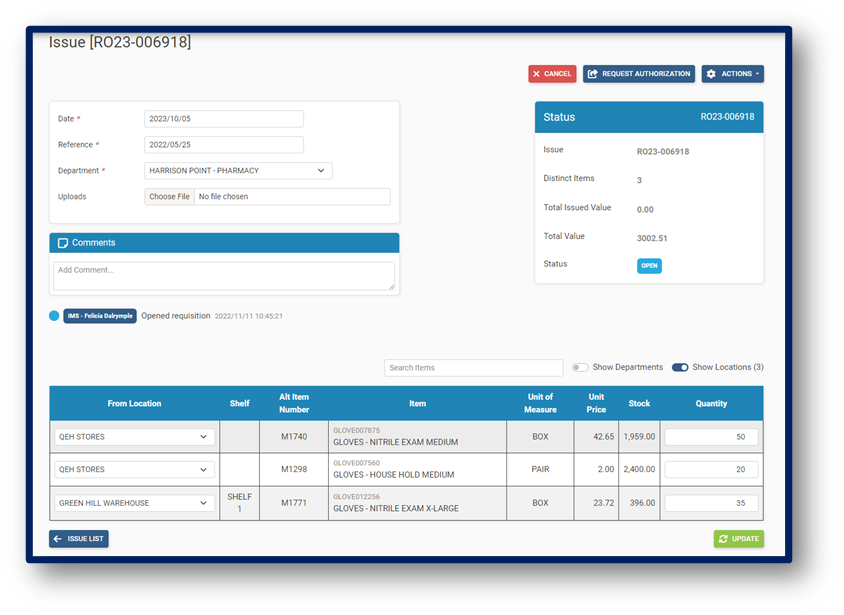
 button and the Edit Issue page is displayed:
Select Issue Date
Enter a Reference Number
Select a Department
Upload a file
Add a comment (if required)
Select from location
Enter Issue Quantities
Update button to save
Cancel button to cancel the Issue
Authorize Issues (based on permissions)
Deauthorize Issues (based on permissions)
Process button to process the Issue (based on permissions)
Actions button to Create new items on the fly (if required)
Actions button to Create new cost centers on the fly (if required)
Actions button to Add items to the Issue (if required)
Actions button to Re-add missing item locations to the Issue (if required)
Actions button to Remove items from the Issue (if required)
Actions button to Copy Items to Issue List (if required)
Actions button to Duplicate Issue (if required)
Actions button to Export Issue as PDF (if required)
Actions button to Revert Issue (if required)
Issue List button to return to Issue main page
Note: The Process button for Issues would only be displayed when the Issue has been authorized and all items on the Issue has enough stock on hand in selected location.
To Create an Internal Transfer
Click Requisitions on the navigation bar
Click the Add Requisitions button
 and the Create Issue Order page is displayed:
Search for items by SKU, by Description or Barcode
Add items to the Issue cart
Remove items from the Issue cart
Once completed, click the Internal Transfer button and the Edit Internal Transfer page is displayed:
Select Internal Transfer Date
Enter a Reference Number
Select a Cost Centre
Add a note (if needed)
Enter Internal Transfer Quantities
Update button to save
Close button to cancel the Internal Transfer
Authorize Internal Transfer (based on permissions)
De-authorize Internal Transfer (based on permissions)
Process button to process the Internal Transfer (based on permissions)
Actions button to Create new items on the fly (if required)
Actions button to Create new cost centers on the fly (if required)
Actions button to Add items to the Internal Transfer (if required)
Actions button to Re-add missing item locations to the Internal Transfer (if required)
Actions button to Remove items from the Internal Transfer (if required)
Actions button to Copy Items to Internal Transfer List (if required)
Actions button to Duplication Internal Transfer (if required)
Actions button to Export Internal Transfer as PDF (if required)
Actions button to Revert Internal Transfer (if required)
Issue List button to return to Issue main page
Note: The Process button for Internal Transfers would only be displayed when the Internal Transfer has been authorized and all items on the Internal transfer has enough stock on hand in selected cost centers.
To Create a Move
Click Issues on the navigation bar
Click the Add Requisitions button
and the Create Issue Order page is displayed:Search for items by SKU, by Description or Barcode
Search for items by Category
Add items to the Issue cart
Remove items from the Issue cart
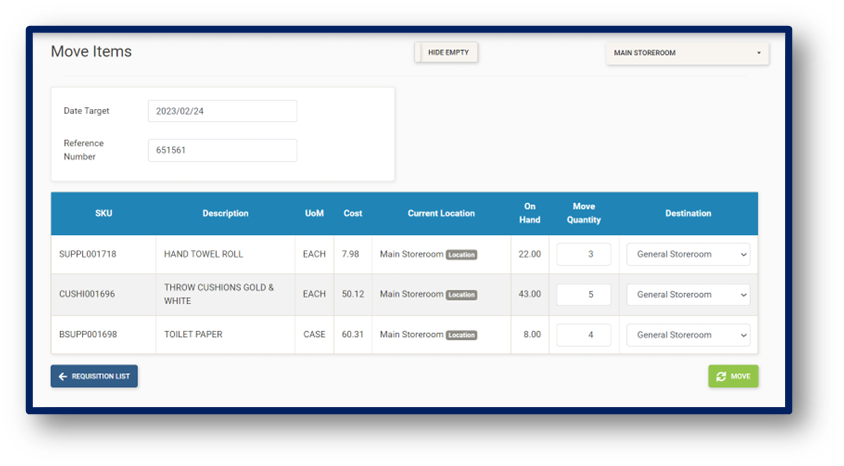
Once completed, click the Move button and the Edit Moves page is displayed:
Select Date Target
Enter Reference Number (if required)
Hide Empty button to show Locations/Cost Centers with zero stock
Location selector to select which Locations/Cost Centers to display
Enter Move quantities
Select Destination (where stock is being moved to)
Move button to process the move
Issue List button to return to Issue main page
To Search and View Issues
Click Requisitions on the navigation bar.
The Requisitions main page is displayed:
Search by Item SKU
Search by Item Description
Search by Barcode
Select Date Range
Search by Status
Search by Issue Order Code
Search by Cost Centre
Search by Created By
Display only Cost Centre to Cost Centre Issues (Internal Transfers)
Display only Issues requiring my authorization
Apply Filters button to search for items
Reset Filter button to remove all filters
Actions button to bulk Authorize selected Issues
Actions button to bulk Print selected Issues
Actions button to clear selected Issues