Dispense
To Create a Dispense
Click Dispense on the navigation bar
The Dispense list page is displayed
Click the Add Dispense
 button:
Search by Item Sku Description or Code
Search by Category
Search by Selection Type (Items or Kits/Recipes)
Apply Filters button to search for items
Reset Filters button to remove all filters
Click the green plus button to add an item to the Cart
Click the red minus button to remove an item from the Cart
Select a From Location
Click the Dispense
 button to create the dispense
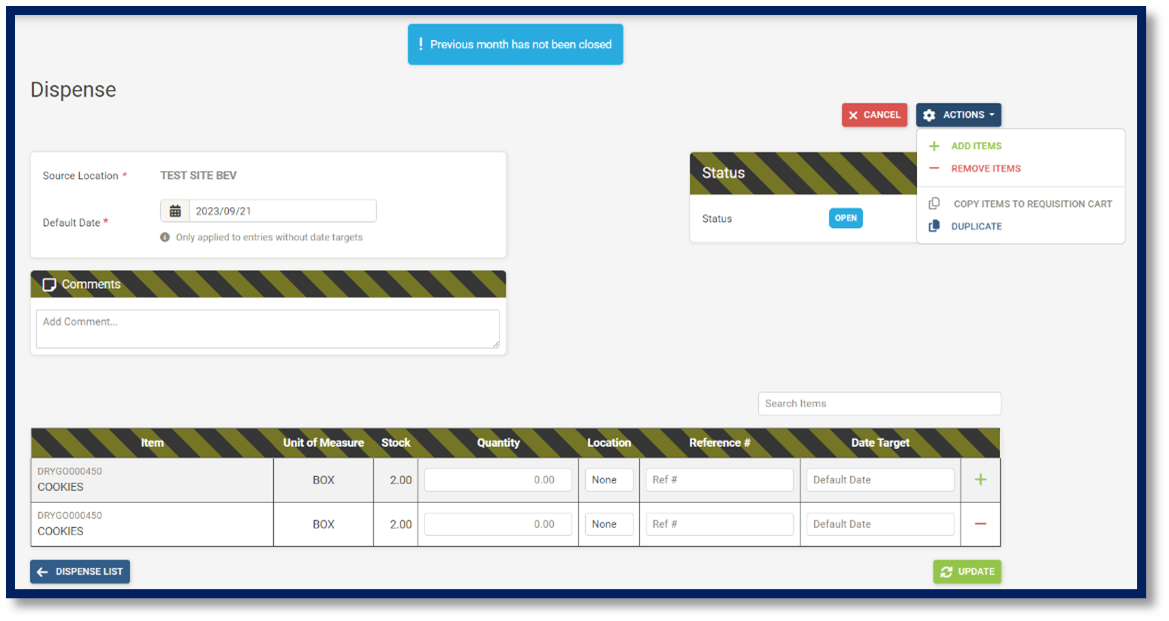
Once completed, the Edit Dispense page is displayed:
The Source Location (defaults to the location selected on the previous page)
Select a Default date
Add a comment
Enter a Quantity
Select a Location
Enter a Reference #
Select a Date Target
Click the plus sign to add a new line entry
Click the minus sign to remove a line entry
Cancel button to cancel the dispense
Process button to process the dispense (creates new requisitions for each line entry)
Actions button to Add new items
Actions button to Remove items
Actions button to Copy items to Requisition Cart
Actions button to Duplicate the dispense
Update button to save te dispense
Dispense List buttton to return to the dispense list page
Note: The Process button for Dispense would only be displayed when all items on the Dispense has enough stock on hand in selected location. Please note that the source location cannot be changed after clicking Dispense. Also note that after clicking update, the reference number will be hidden to those without the role required.
To Search and View Dispense
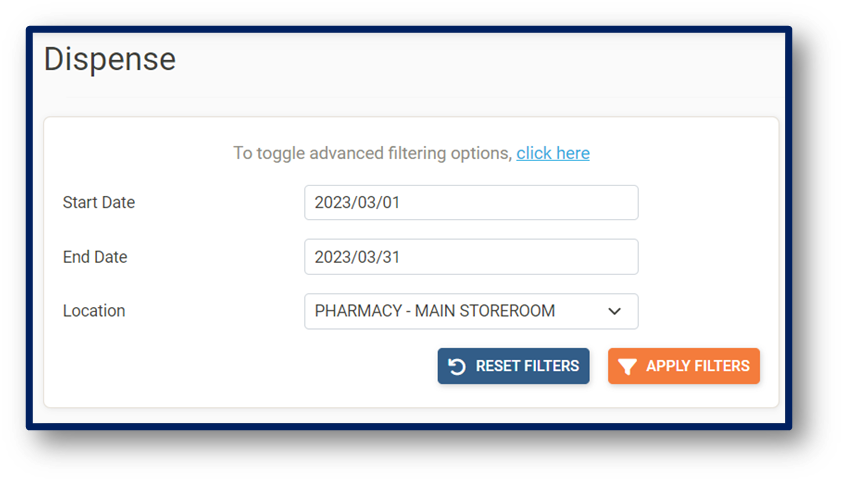
Click Dispense on the navigation bar and the Dispense List page is displayed:
Search by Date Range
Search by Location
Search by Status
Apply Filters button to search for items
Reset Filters button to remove all filters
Click the Magnifying glass to view the transaction.
To Search and View Requisitions
Click Requisitions on the navigation bar
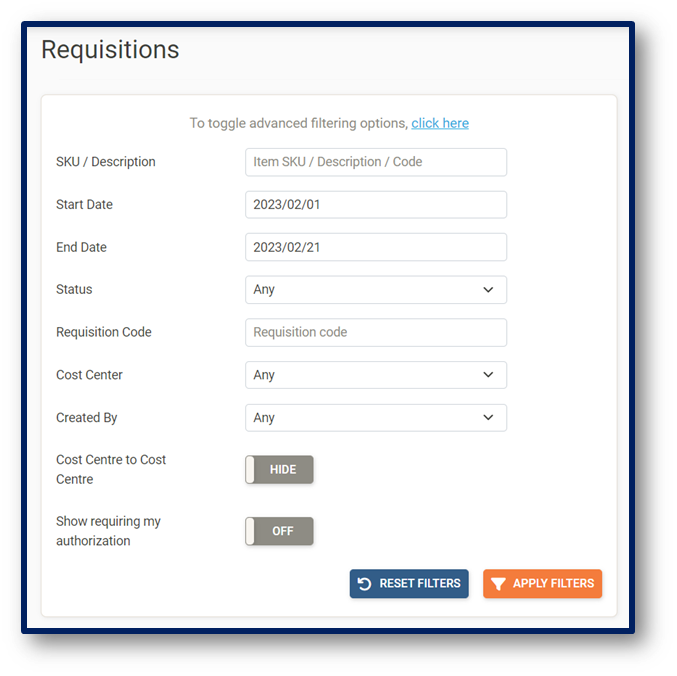
The Requisitions main page is displayed:
Search by Item SKU, Description, or Code
Select a Date Range
Filter by Status
Search by Requisition Code
Filter by Cost Center
Filter by Created by
Toggle Show/Hide Cost Center to Cost Center
Apply Filters button to search for items
Reset Filter button to remove all filters
Actions button to Cancel selected Requisitions
Actions exports selected Requisition orders as PDF
Back to Requisitons List