Purchases
To Create Purchase Orders
Click Purchases on the navigation bar
Click the Add Purchases
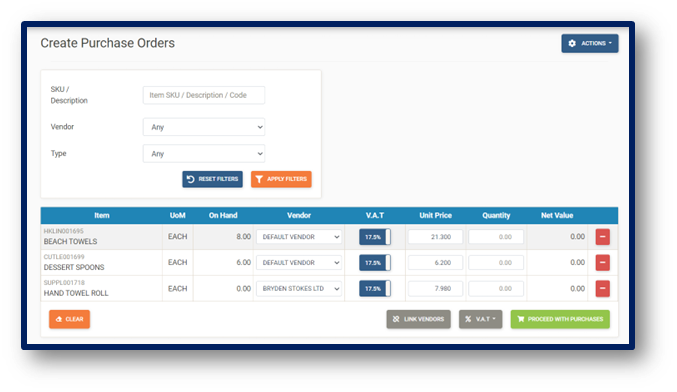
 button and the Create Purchase Order page is displayed:
To Create a Purchase Order
Search for items by Item SKU, Description or Barcode
Add items to the Shopping Cart (Click the green plus button to add)
Remove items from the Shopping Cart (Click the red minus button to remove)
Apply V.A.T
Remove V.A.T
Change Unit Price
Add Order Quantity
Select the Vendor
Select the Order Type
Actions button to create new items on the fly (if required)
Note: The V.A.T  button can automatically fill all line entries with the V.A.T. amount selected. The Currency
  button is used to change the currency on the current Purchase Order being created.
Once completed, click the Proceed With Purchases
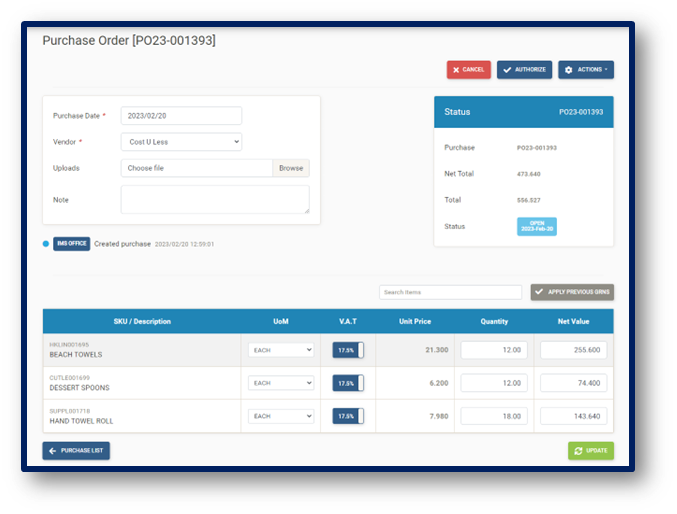
 button and the Edit Purchase Order page is displayed:
Edit Purchase Code (if required)
Enter the Date
Change the Vendor
Select a Department
Select an option for Overseas Purchase (Yes/No)
Change the Currency Type
Upload a file
Add a note (private or public)
Add/Remove V.A.T.
Change Order Quantity
Change Unit price (Apply Pervious GRNs)
Update button to save order
Close button to cancel order
Authorize button to authorize purchase order
Deauthorize Purchase Order (based on permissions)
Send to Vendor (based on if the vendor has an email)
Mark Delivered
Actions button to Create a new item
Actions button to add items
Actions button to remove items
Actions button to Copy items to purchase cart
Actions button to Duplicate purchase
Actions button to Export as PDF
Actions button to Export with Departments as PDF
To Receive a Purchase Order
Once the Purchase Order is Authorized, click the Receive Order
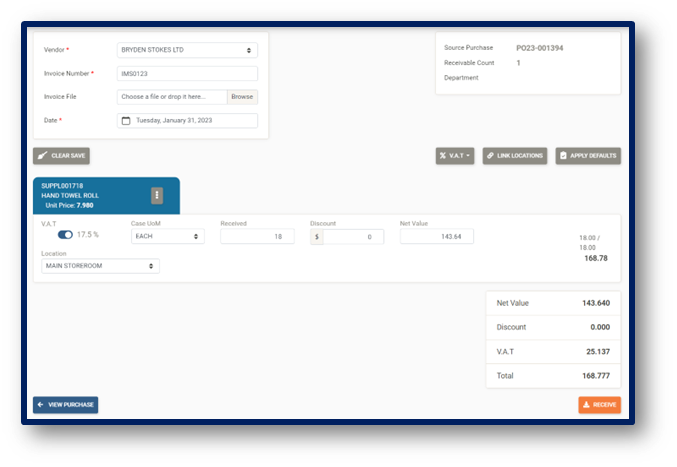
 and the Receive Purchase Order page is displayed:
Enter the Invoice Number
Select Received Date
Select the location where the items are received to
Change VAT option
Apply Defaults (this automatically applies the Default VAT option, Order Quantity, Default Locations and Net Value)
Save button to save the Receive Note
Receive button to receive the Purchase Orders
Note: The Receive Order button would not be displayed until the Purchase Order is at Authorized status. The V.A.T and Link Locations  button can automatically fill all line entries with the V.A.T. amount and Location selected. Before receiving, please verify that the Sub-total, Discount, V.A.T. and Grand-Total values match the values on the corresponding invoice.
To Search and View Purchase Orders
Click Purchases on the navigation bar.
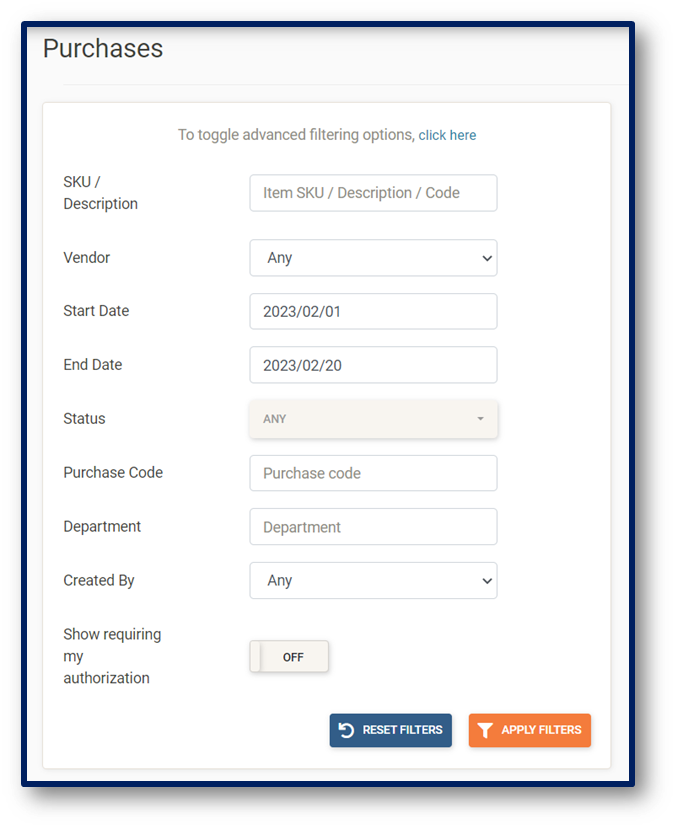
The Purchases main page is displayed:
Search by item SKU, by item Description or Barcode
Search by Vendor
Select Date Range
Search by Status
Search by Purchase Order Code
Search by Department
Search by Created By
Show requiring my authorization
Apply Filters button to search for items
Reset Filter button to remove all filters
Actions button to view/order from the shopping list
Actions button to Import Purchase
Actions button to bulk Authorize selected Purchase Orders
Actions button to bulk Print selected Purchase Orders
Actions button to clear selection